
Exploring Solscan Token Leaderboard
The Solscan Token Leaderboard helps users discover Solana tokens, compare trading activity, and explore token categories. With dedicated category, Trending, and New views, users can narrow their research using trading metrics, multiple timeframes, and filters.
Locate the Leaderboard
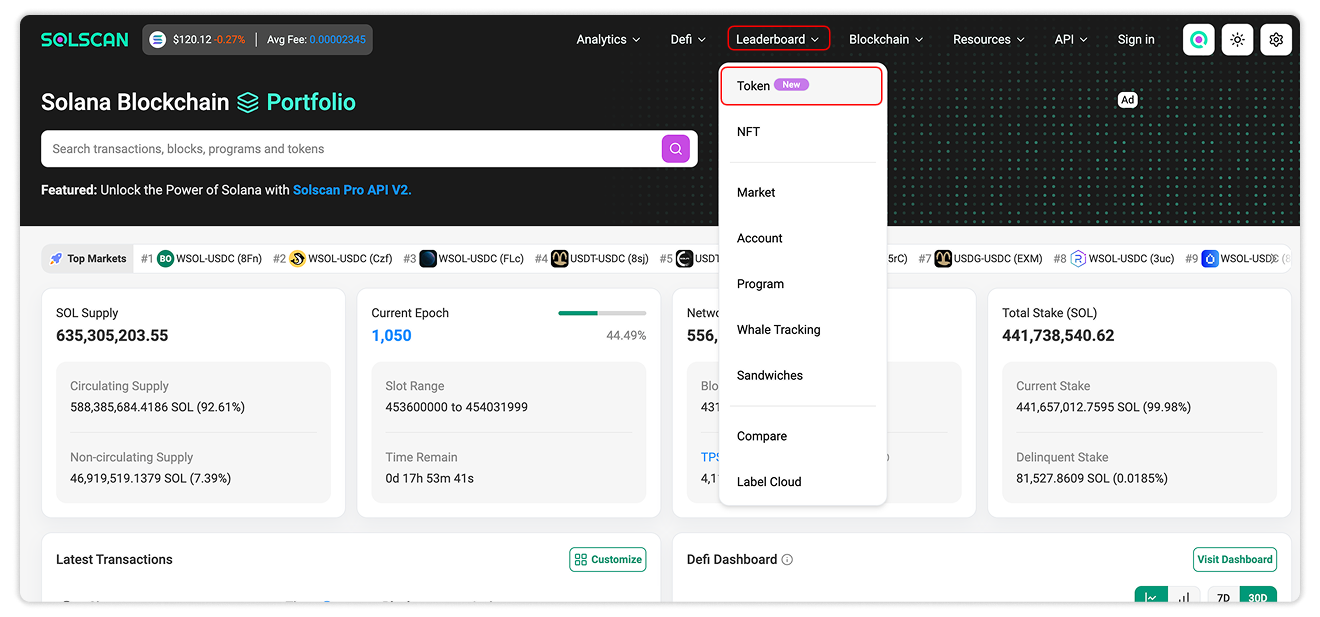
To access the Token Leaderboard:
- Open Solscan.
- Select Leaderboards → Token from the navigation menu.
Alternatively, visit the Solscan Token Leaderboard directly.
Leaderboard Tabs
The leaderboard offers three main views: Tokens by category, Trending, and New.
Tokens by Category
Explore tokens within categories such as DeFi, Liquid Stake, Stablecoin, Meme, and Stocks. Selecting a category displays its listed tokens, allowing you to compare their individual metrics.
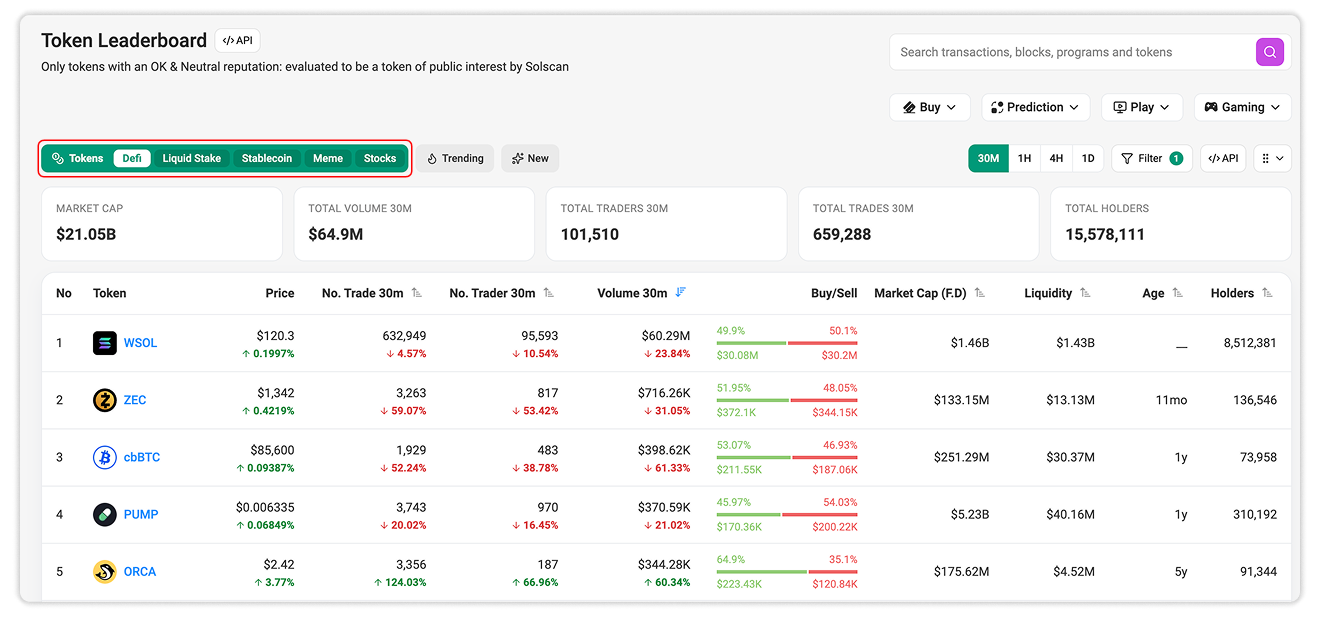
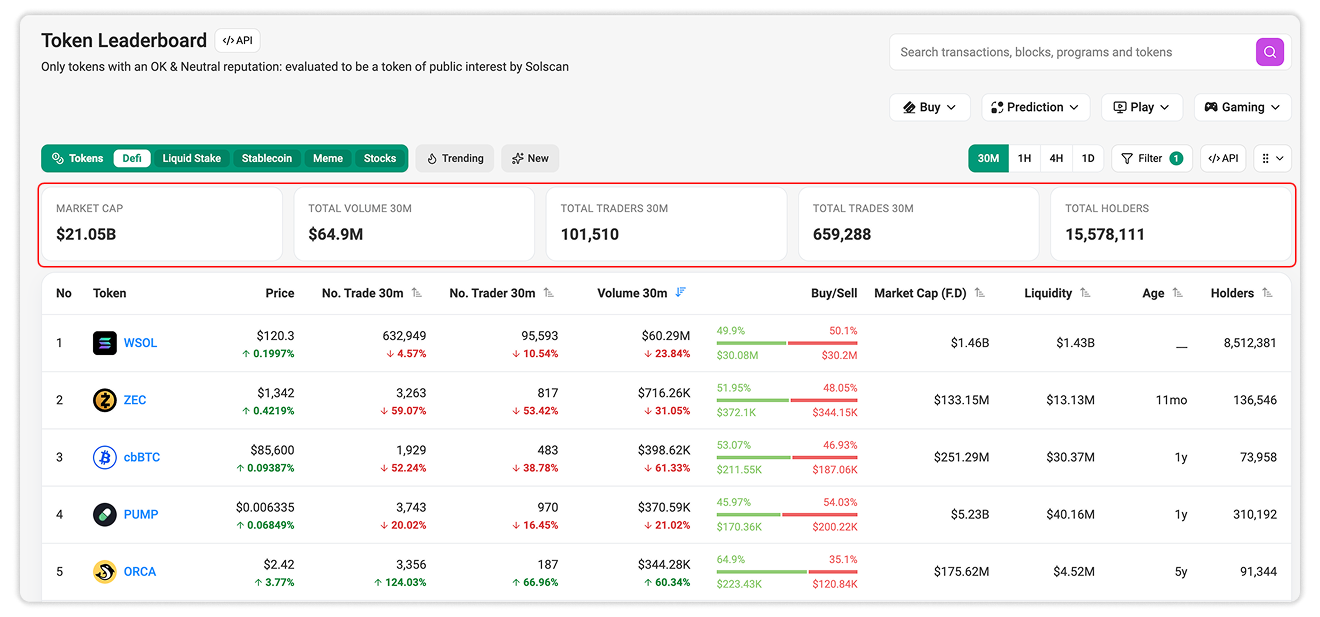
Each category also provides an overview of aggregate market cap, volume, trade count, trader count, and holder count. These totals cover only tokens included in the leaderboard within that category. Trader and holder totals should be read as aggregated token-level counts, rather than unique addresses across the category.
The overview updates with the selected timeframe, helping users compare category activity over different periods.
Trending
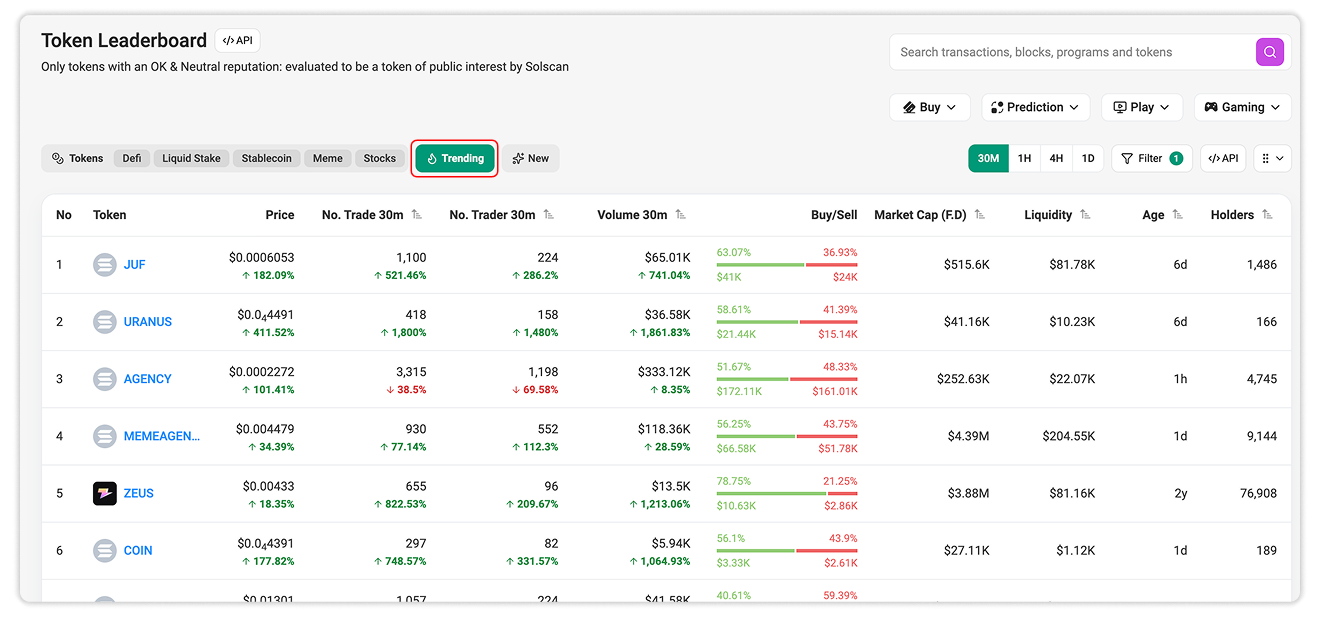
The Trending tab brings trending tokens into a dedicated view. Use the trading metrics to examine their volume, trade count, trader participation, and liquidity, then apply filters or sorting to focus on tokens that match your criteria.
New
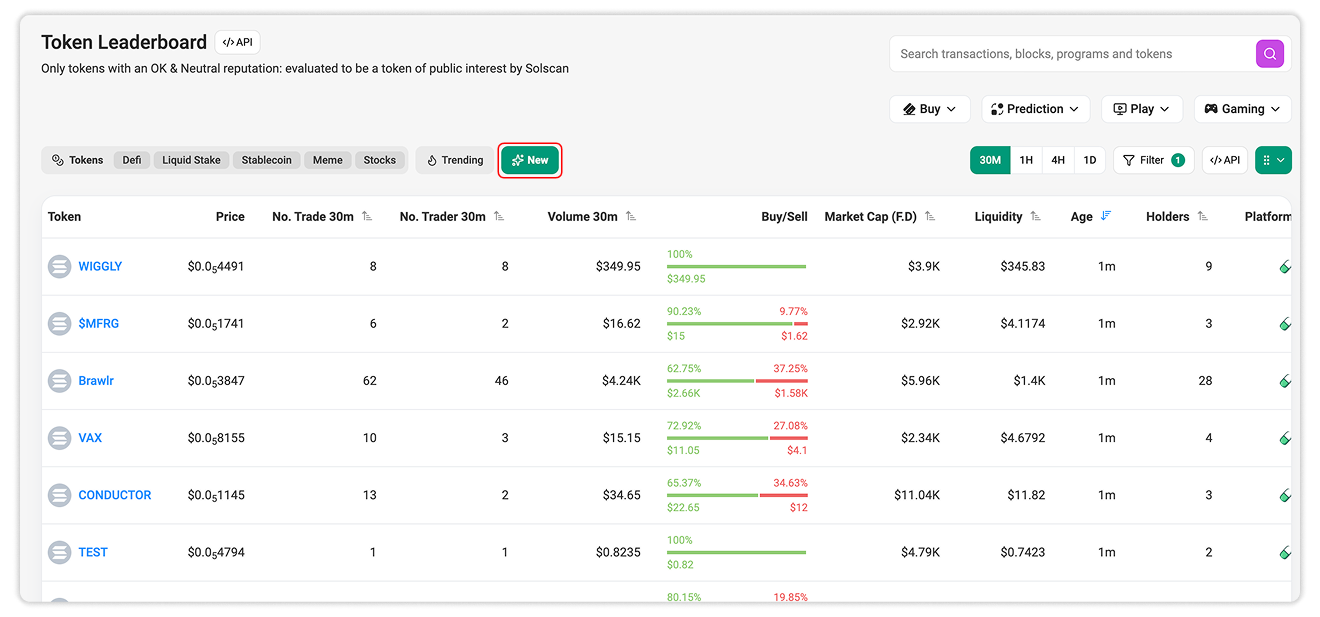
The New tab focuses on newly created tokens. Token age adds context to their trading activity, while the Platform column identifies the associated platform that the token was issued.
Token Metrics
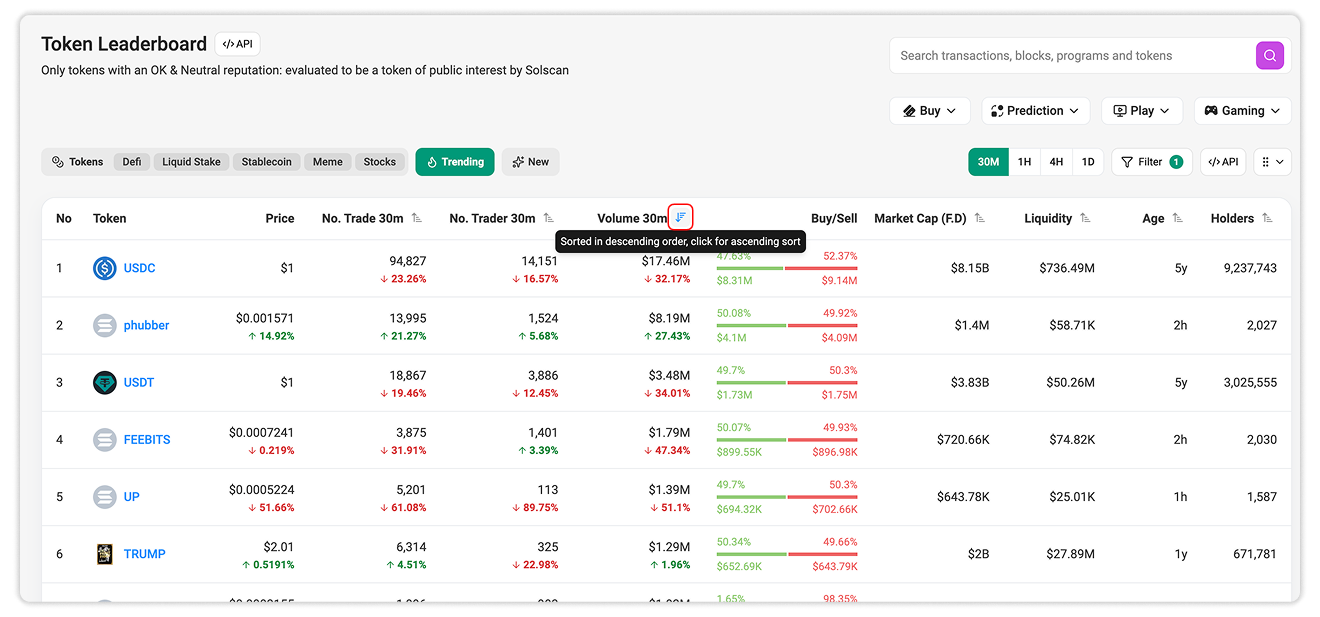
Each row represents a token. The table provides the following information:
| Column | Description |
|---|---|
| Token | The token’s name and symbol. Select it to open its Token Details page. |
| Price | The token’s latest available market price. |
| No. Trade | The number of trades during the selected timeframe. |
| No. Trader | The trader count during the selected timeframe. |
| Volume | The trading volume during the selected timeframe. |
| Buy/Sell | A breakdown of buy and sell volume, including their values and percentage shares. |
| Market Cap (F.D) | The token’s fully diluted market capitalization. |
| Liquidity | The liquidity available for trading the token. |
| Age | The time elapsed since the token was created. |
| Holders | The number of addresses holding the token. |
| Platform | The platform issued the token. Available in the New tab only. |
Trade count, trader count, and volume follow the selected observation period, shown in their column headings. For example, selecting 30M displays these metrics for the 30-minute window.
Timeframes, Filters, and Sorting
Select a Timeframe
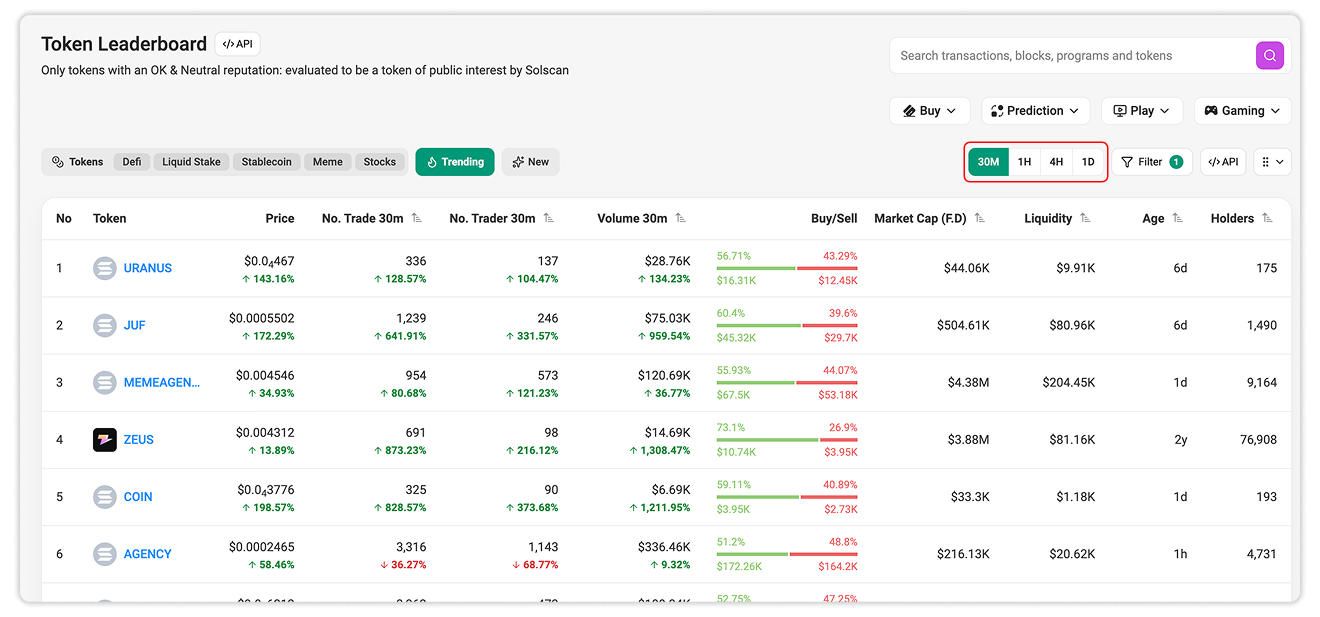
Choose 30M, 1H, 4H, or 1D to view trading activity over different periods. Shorter windows help users examine recent activity, while longer windows provide broader context.
The selected timeframe applies to the table’s trading metrics and the category overview’s activity metrics.
Apply Filters
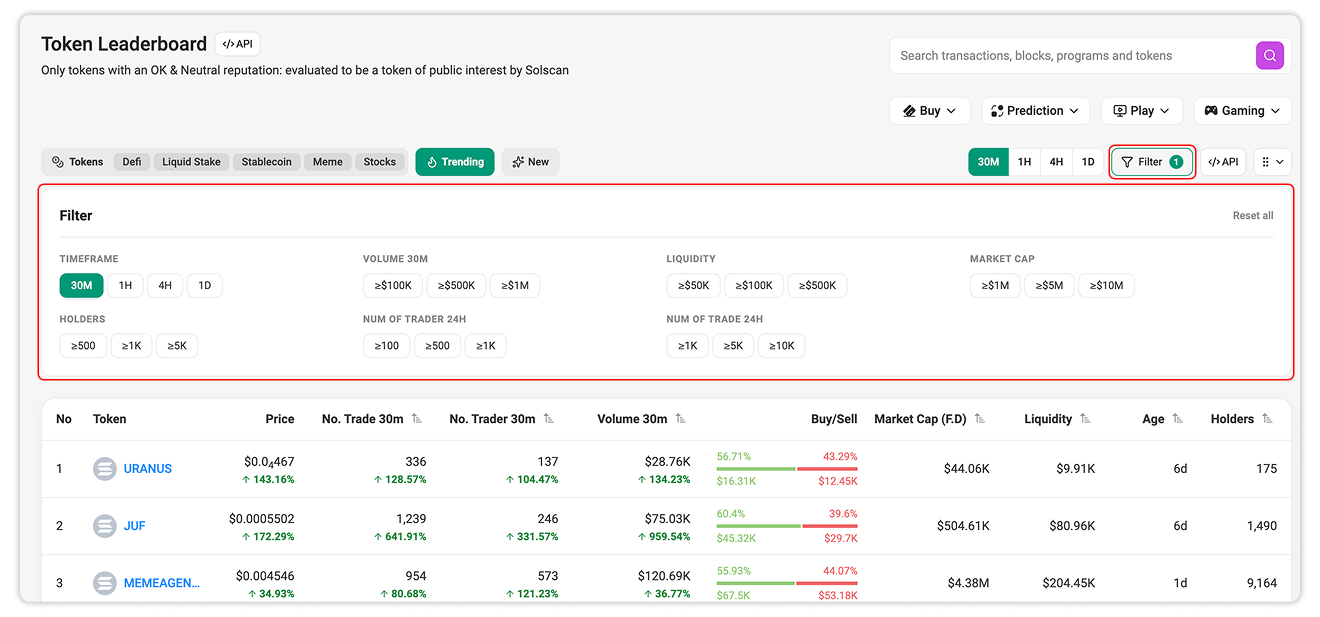
Select Filter to narrow the list using available conditions, including volume, liquidity, market cap, holders, and trade or trader counts.
The trade-count and trader-count filters are labeled 24H. These conditions use 24-hour activity, even when the table displays a shorter observation period.
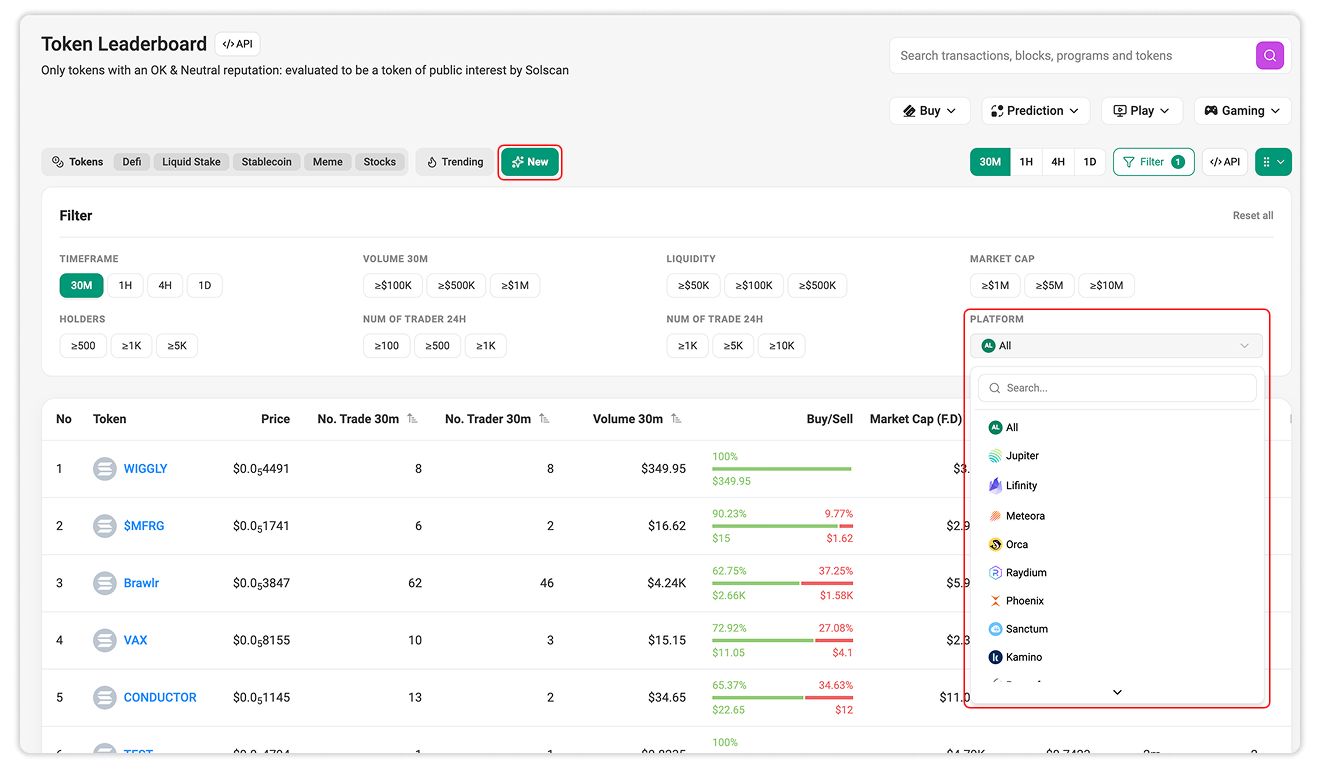
In the New tab, use the additional Platform filter to focus on tokens associated with a particular platform.
Sort the Results
Select a supported column heading to sort tokens in ascending or descending order. Combining sorting with filters makes it easier to compare tokens by the metrics relevant to your research.
Explore Token Details
Select a token to open its Token Details page, where you can examine holder distribution, transactions, transfers, trading activity, markets, and analytics.
For a full walkthrough, refer to Exploring Token Details Page.
The leaderboard’s eligibility notice specifies tokens with OK or Neutral reputations that Solscan evaluates as being of public interest. For information about updating a token’s profile, refer to the Token Update Submission Guideline.

Still Have Questions?
Supported Explorers
 Solscan
  Eclipsescan
  Fogoscan